

TTS Provider
Select your Text-to-Speech provider in the assistant settings. Available in Pipeline and Dualplex modes. Available Providers:- ElevenLabs - High-quality voices
- Cartesia - Fast, low-latency synthesis
Voice Library
Each TTS provider has its own voice library. Select male/female, accent, or language based on your provider.Importing Voices from the Provider Library
Beyond the built-in catalog, you can import any public voice from your TTS provider’s own library (ElevenLabs Voice Library or Cartesia Library). Available in Pipeline and Dualplex modes. Steps:- Click “Import voice” next to the voice selector
- Pick the provider (ElevenLabs or Cartesia)
- Open the provider’s voice library and find a voice you like
- Copy the voice link or ID (the ⋮ menu next to the voice)
- Paste it in the import field and click Import
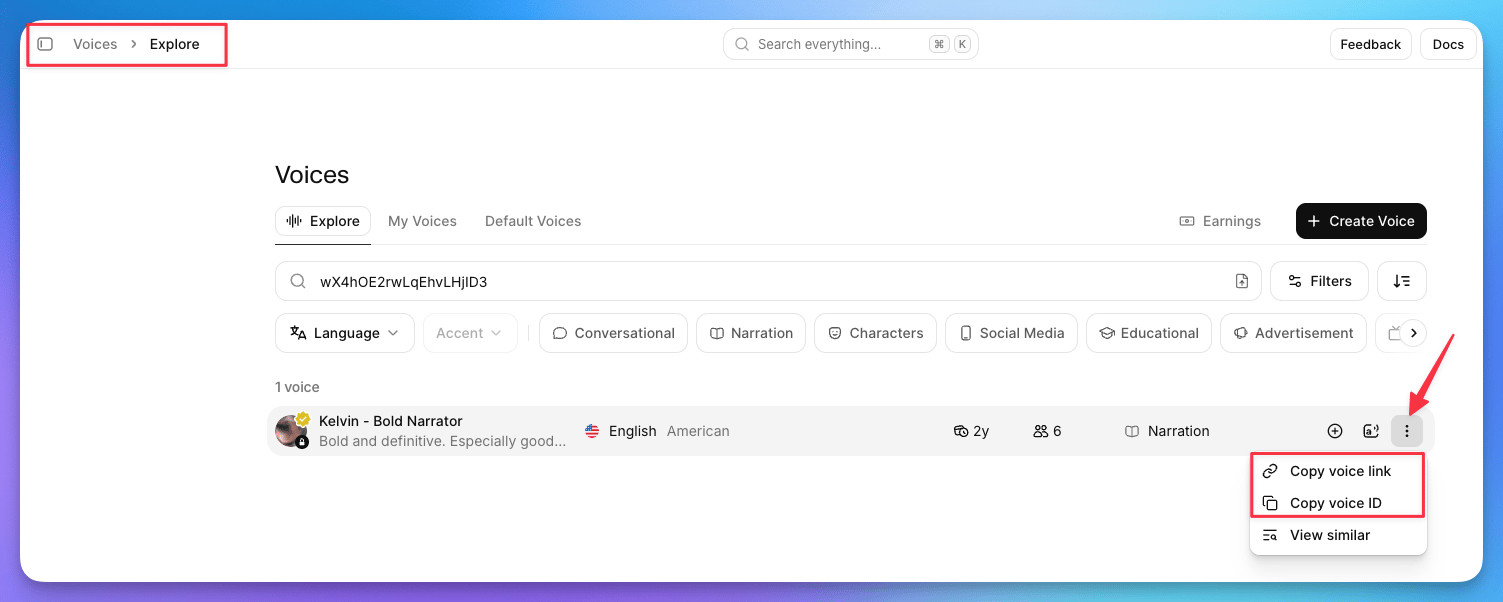
ElevenLabs Voice Library — copy the voice link or ID from the ⋮ menu
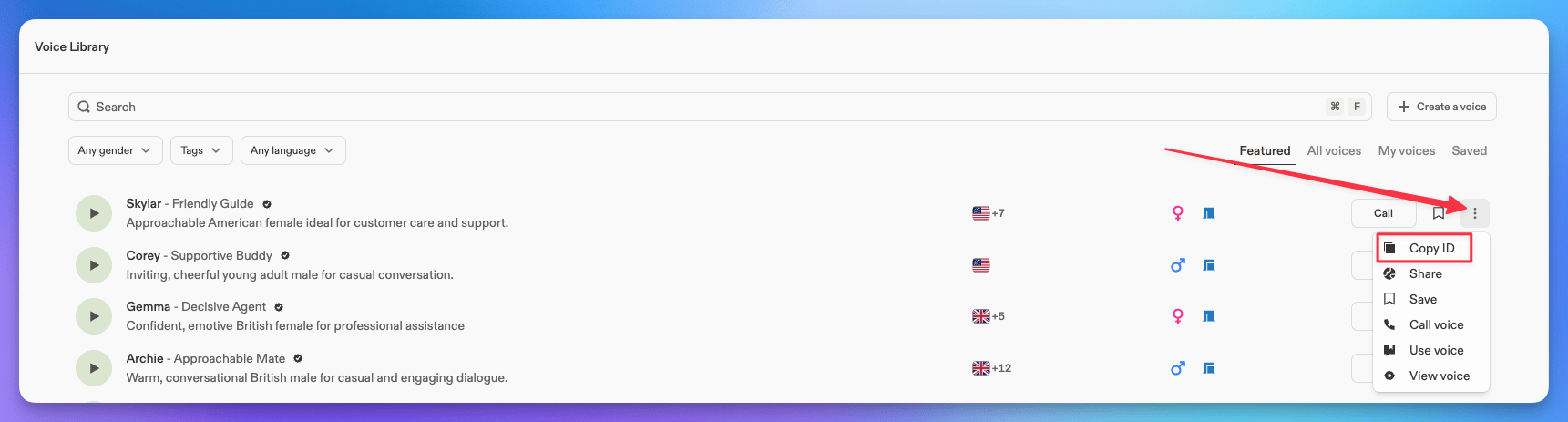
Cartesia Voice Library — copy the voice ID from the ⋮ menu
- ElevenLabs voices with a custom price set by their creator cannot be imported.
- Private or unshared voices cannot be imported — only public library voices.
Voice Cloning
Clone a voice from an audio sample. Available in Pipeline and Dualplex modes. Clone to Provider:- Cartesia - Single audio file, at least 10 seconds, 1 speaker, no background noise
- ElevenLabs - Samples over 1 minute, 1 speaker, no background noise. Max 5 minutes total. Quality over quantity.
- Click “Clone voice” next to voice selector
- Select provider (Cartesia or ElevenLabs)
- Choose the voice language
- Enter a name for your voice
- Record or upload audio
- Wait for processing
- Select your new voice from dropdown
Best Practices
- High-Quality Audio: Clearer samples give better results
- Steady Delivery: Natural tone, no abrupt changes
- No Background Noise: Record in a quiet environment
- Legal: Ensure permission to clone voices that aren’t yours
Tip: After selecting or cloning a voice, do a test call to confirm it sounds as expected.